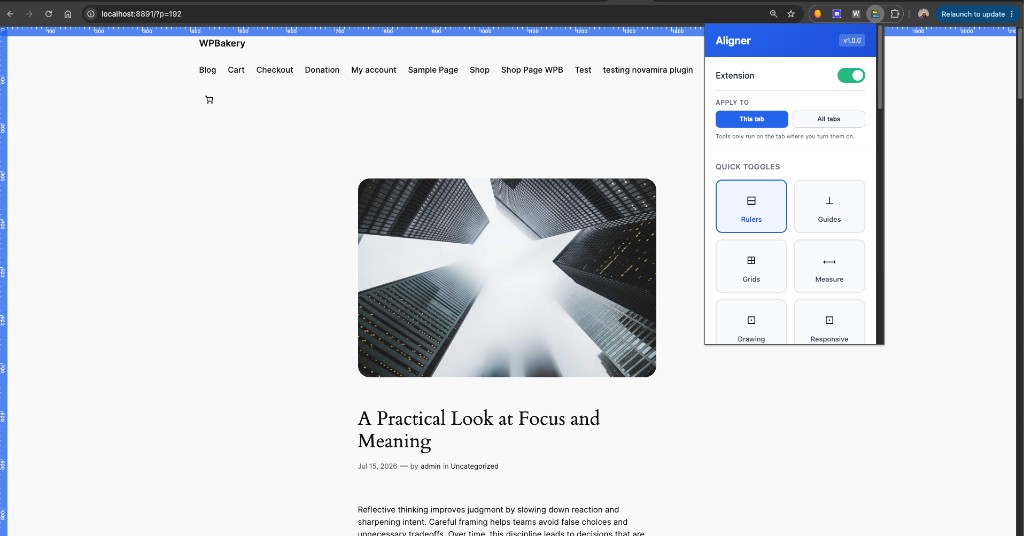
One-click extension on / off
Master toggle in the popup. Turn the whole toolkit off for a clean tab, or scope tools to This tab vs All tabs so nothing surprises you on other pages.
Chrome extension · fully local · MIT
Measure and mark layouts, inspect and edit live UI, pull colors and media, audit accessibility and speed, export DESIGN.md / SKILL.md for AI IDEs, clear cache, fill forms for QA, and run a WordPress builder suite — all from one free, local-first Chrome extension.
Beyond the tool names — these are the moments designers, QA, and WordPress builders actually reach for every day.
Master toggle in the popup. Turn the whole toolkit off for a clean tab, or scope tools to This tab vs All tabs so nothing surprises you on other pages.
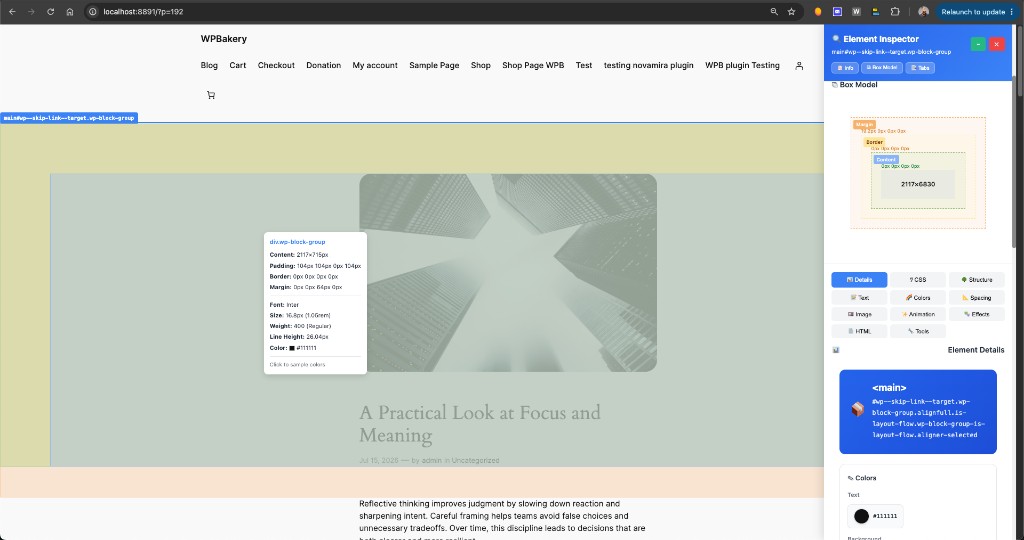
Element Inspector covers box model, CSS, structure, text, colors, spacing, images, effects, and HTML — with contrast checks and typography details without opening full DevTools noise.
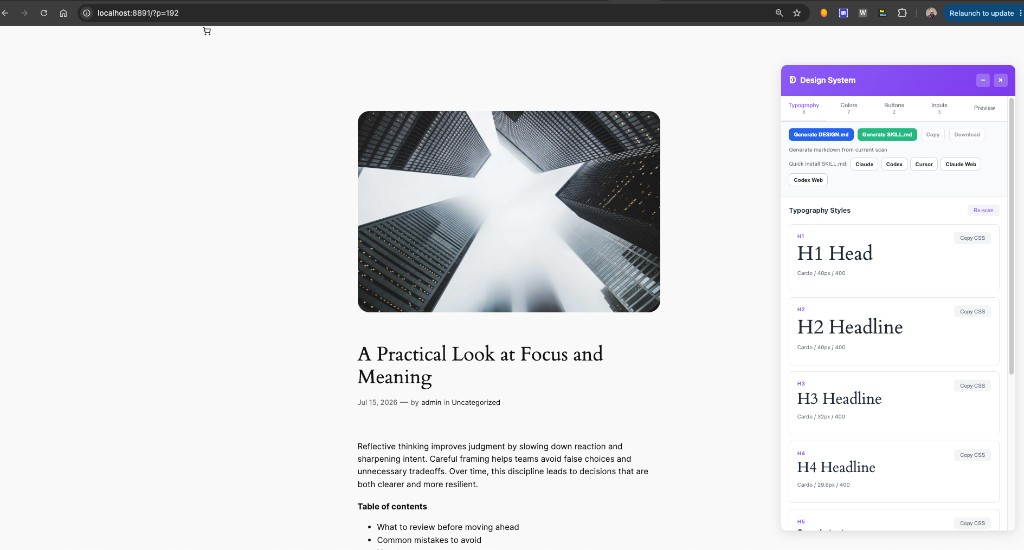
Design System scans typography, colors, buttons, and inputs, then generates markdown you can copy into Cursor, Claude, Codex, and similar agents — so your AI works from the live site’s real tokens.
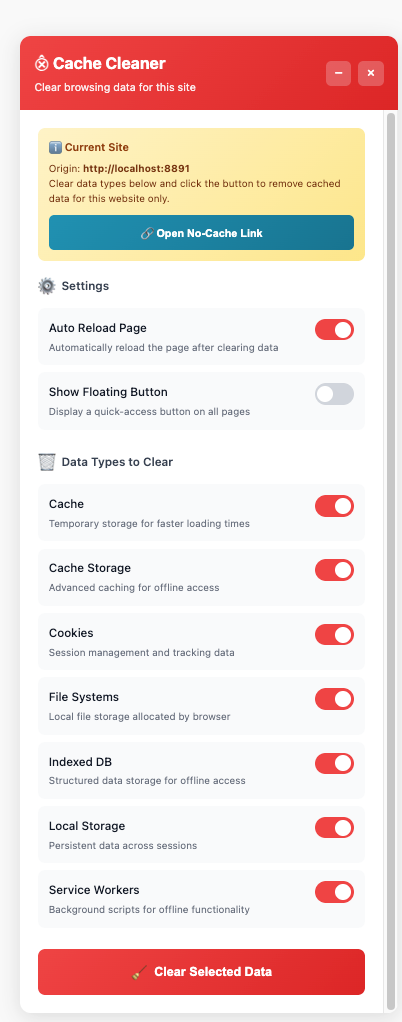
Cache Cleaner clears cache, cookies, storage, IndexedDB, service workers, and more for the current site only — with auto-reload and an optional floating quick button.
Page Controls includes Fake Filler and Lorem helpers so you can stress-test forms with random data, plus toggles to hide images, block JS, stop animations, and isolate bugs without touching source.
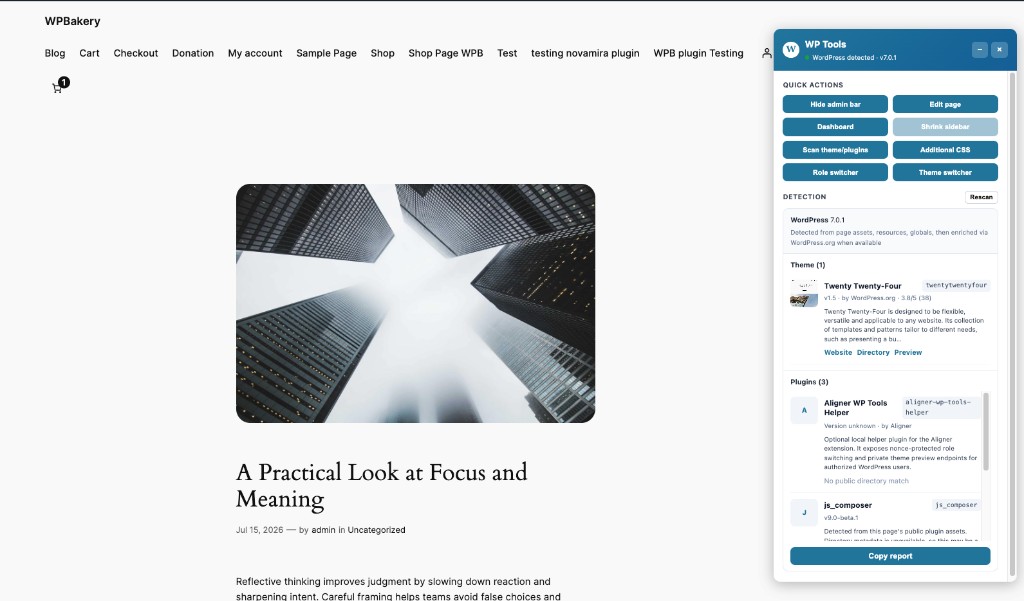
Role switcher, private Theme switcher, ACF field/PHP copy, admin menu search, hide notices, sidebar shrink, smart page editor, theme/plugin detector, update backlog, and Classic Customizer — in one WP Tools panel.
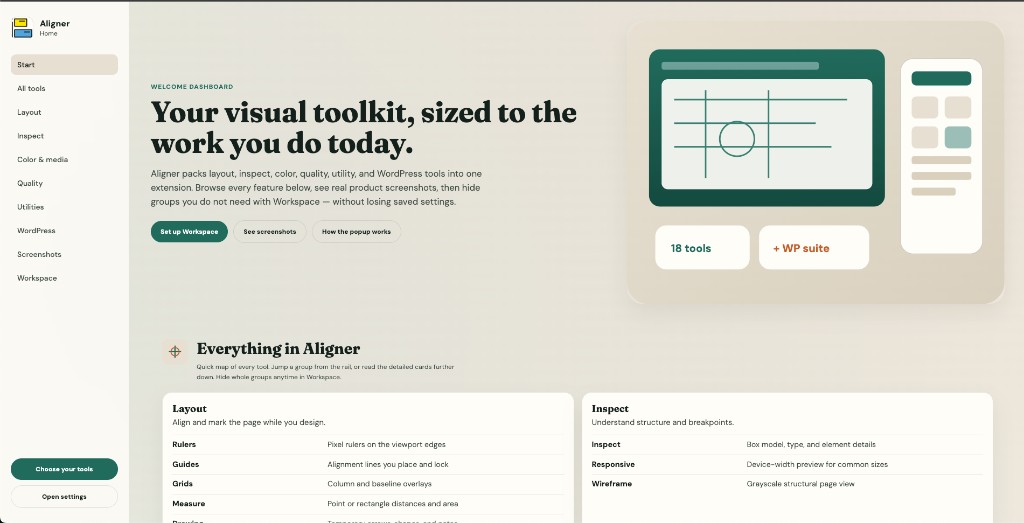
Quick map of every tool — the same inventory as Aligner Home inside the extension. Hide whole groups anytime with Workspace presets after install.
Align and mark the page while you design.
Understand structure and breakpoints.
Sample colors and pull page assets.
Catch issues before you ship.
Everyday helpers while testing.
Builder panel for WP sites. Role & Theme switcher need the helper plugin.
Align, measure, and mark the page while you design.
What: Pixel rulers along the viewport edges.
Why: Quick distance checks without leaving the page.
How: Toggle from the popup, then drag origin if needed.
What: Straight or free-draw alignment lines.
Why: Keep columns, baselines, and edges consistent.
How: Enable Guides, place lines, lock when settled.
What: Column and baseline overlays.
Why: Validate rhythm against a layout system.
How: Choose columns/gutters in popup controls.
What: Point or rectangle measurements.
Why: Capture exact sizes between elements.
How: Turn on Measure and click the page surface.
What: Temporary annotation marks on the page.
Why: Leave visual notes during review passes.
How: Pick a drawing tool and sketch overlays.
Understand structure, breakpoints, and wireframe intent.
What: Hover inspection for box model, CSS, structure, text, colors, spacing, images, effects, and HTML.
Why: Inspect and edit understanding without DevTools overload — includes WCAG contrast and typography.
How: Enable Inspect, move across elements, open Details / Box Model / Tabs panels.
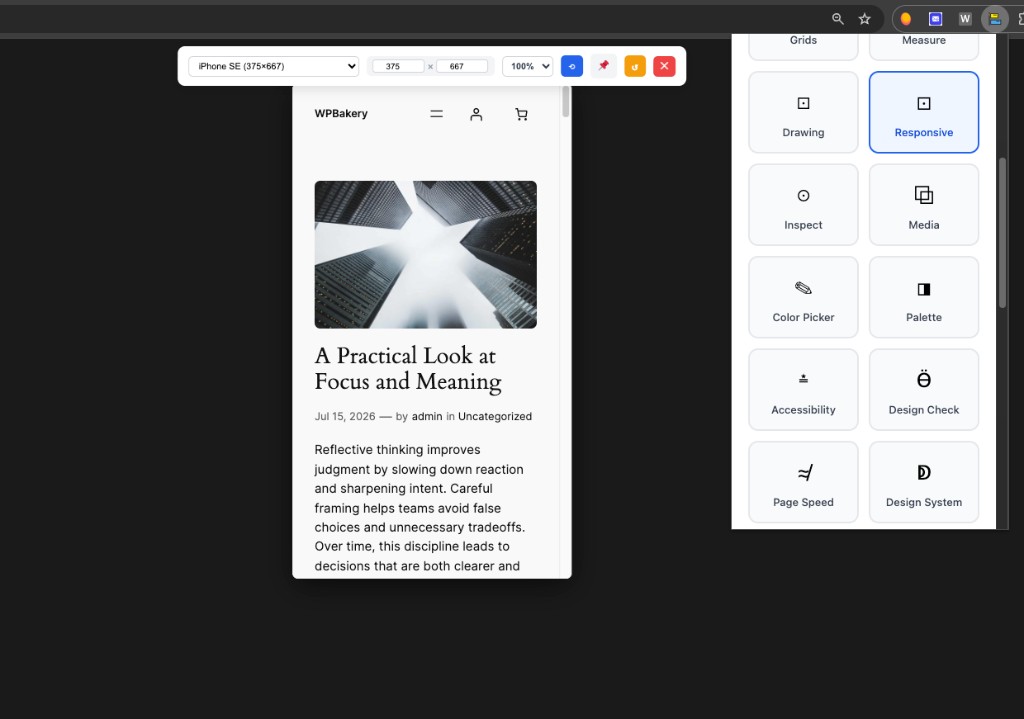
What: Device-width preview helpers.
Why: Check layouts at common breakpoints quickly.
How: Toggle Responsive and pick a device width.
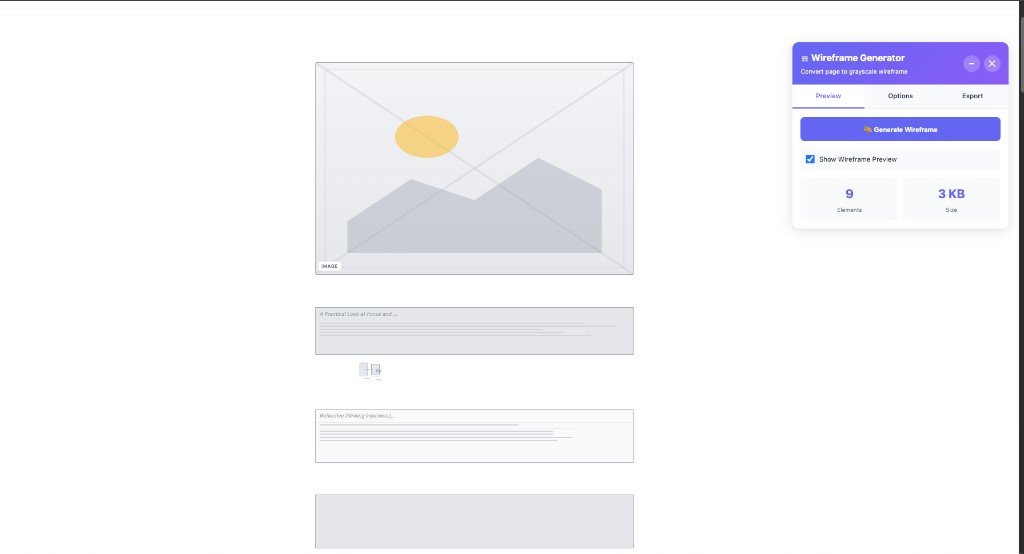
What: Structural wireframe rendering of the page.
Why: Review hierarchy without visual decoration.
How: Enable Wireframe for a stripped composition view.
Sample colors, build palettes, and pull page assets.
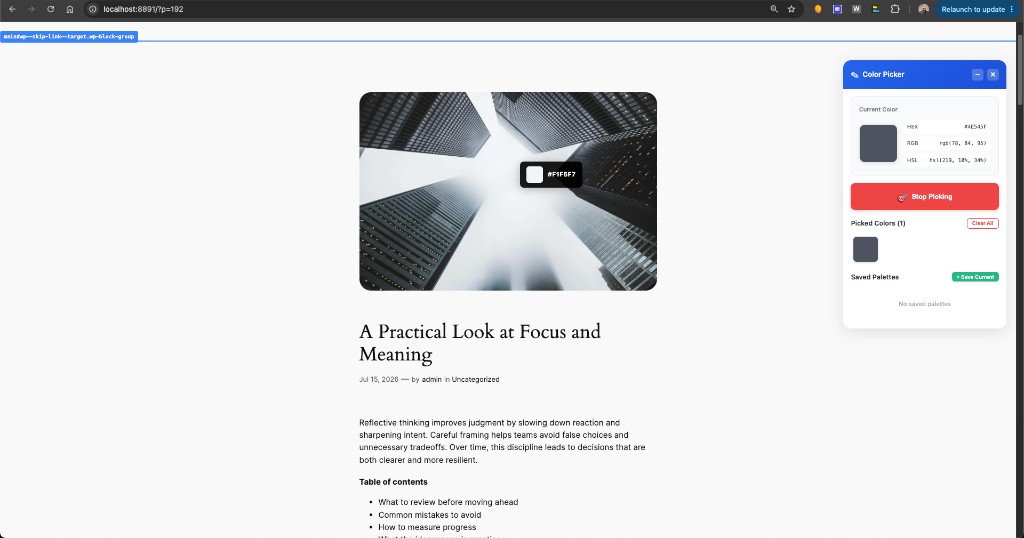
What: Eyedropper and color history for the page.
Why: Match brand colors from live UI.
How: Enable Color Picker and sample the screen.
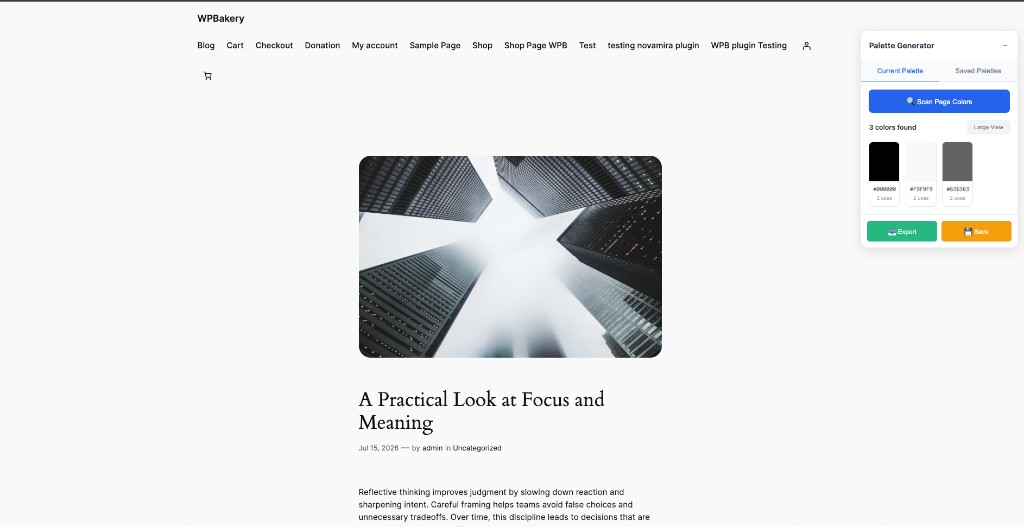
What: Generated palette from page colors.
Why: Turn a live site into a reusable swatch set.
How: Run Palette and copy the groups you need.
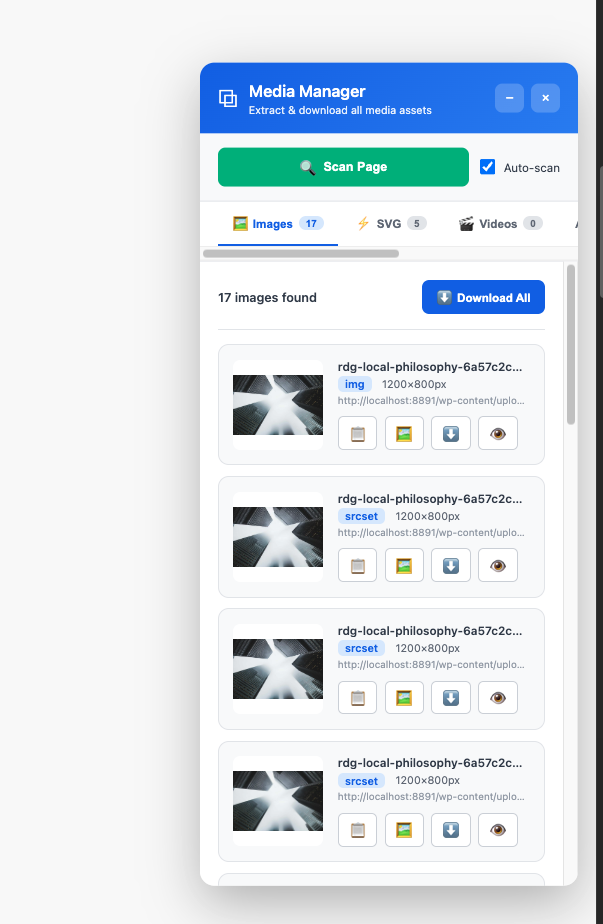
What: Inventory of images, video, SVG, and more.
Why: Audit and download assets from the current page.
How: Open Media Manager and scan the tab.
Catch accessibility, consistency, and performance issues early.
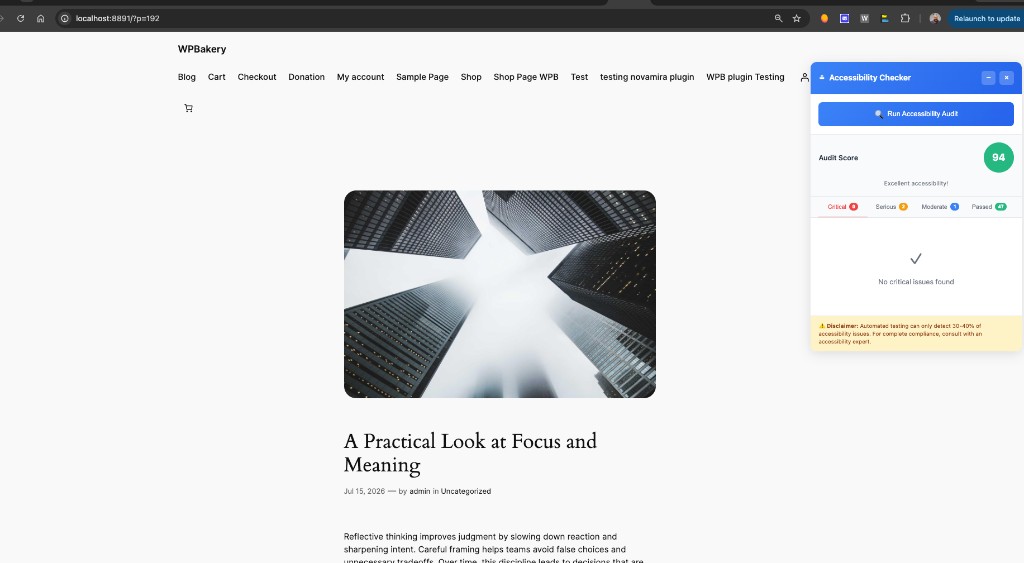
What: Issue scan with severity filters.
Why: Surface barriers before shipping.
How: Enable Accessibility and review highlighted findings.
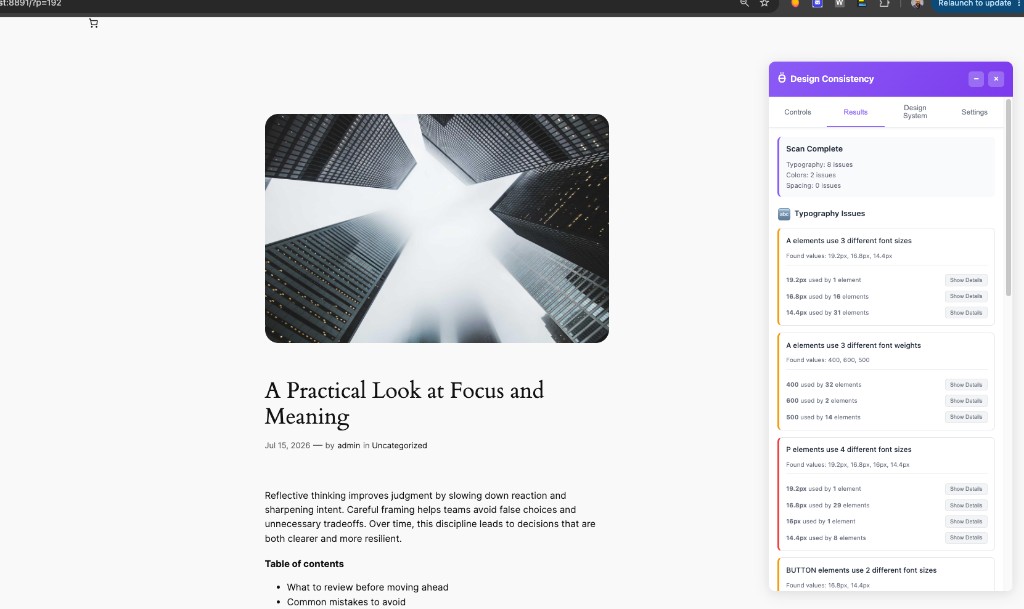
What: Consistency checks for type, color, spacing.
Why: Spot drift across a page system.
How: Run Design Check and triage highlighted mismatches.
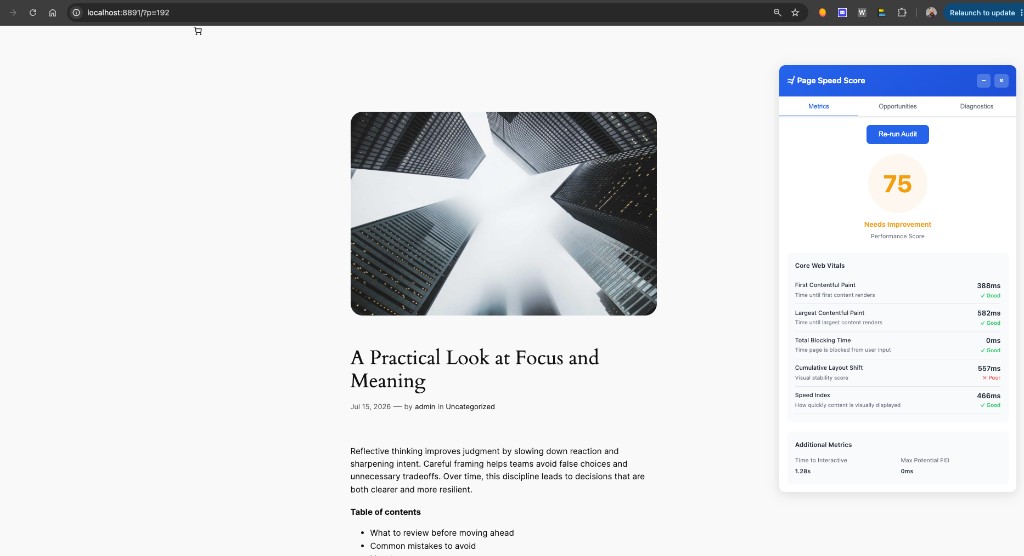
What: Local performance diagnostics for the tab.
Why: Find heavy assets and slow paths while designing.
How: Open Page Speed and run against the current page.
What: Live tokens for typography, colors, buttons, and inputs — plus Preview.
Why: Hand AI IDEs and teammates the real system the page uses, not a guess.
How: Scan, then Generate DESIGN.md / SKILL.md, Copy, Download, or quick-install for Claude, Codex, Cursor.
Everyday helpers for cache, timing, and page behavior.
What: Per-site cleanup for cache, cache storage, cookies, file systems, IndexedDB, local storage, and service workers.
Why: See fresh builds without nuking your whole browser profile.
How: Pick data types, optional auto-reload / floating button, then Clear Selected Data.
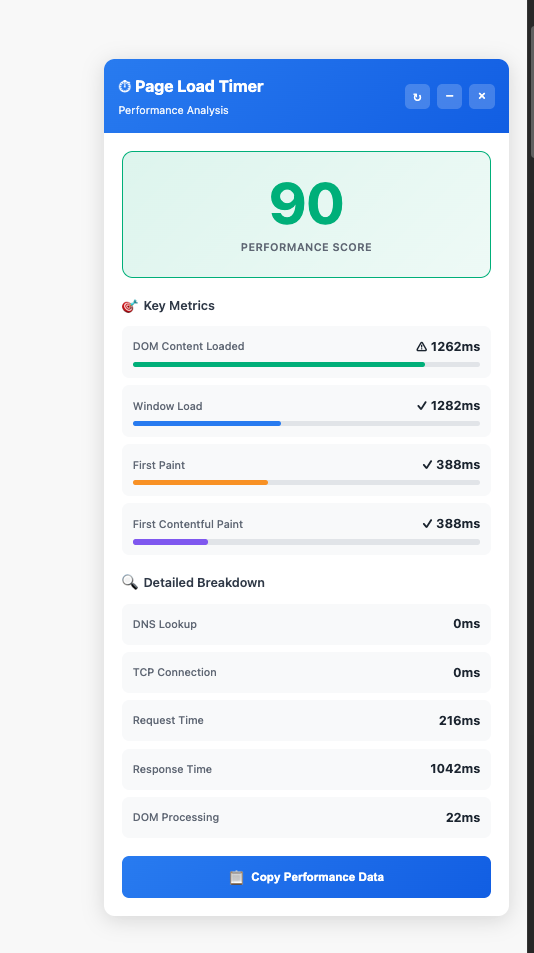
What: Visible load timing for the current navigation.
Why: Compare perceived speed after edits.
How: Enable the timer and reload the page.
What: Temporary controls for content, styling, JS, cookies, popups, other extensions, and Fake Filler for QA forms.
Why: Isolate bugs and fill forms fast without changing source or installing separate filler extensions.
How: Toggle what you need, Apply Changes, Reset All when finished.
Admin-aware tools for builders working on WordPress sites.
What: A floating panel for admin shortcuts, detection, backlog, notices, and switchers on WordPress tabs.
Why: Keep WordPress builder chores in one place instead of hunting admin screens.
How: Enable WP Tools on a WordPress tab while logged in. Most actions work with normal WordPress admin access. Role switcher and Theme switcher need the optional helper plugin below.
What: Copy field names and PHP snippets from Advanced Custom Fields contexts.
Why: Faster handoff between admin UI and theme/plugin code.
How: Enable ACF Tools in the WP Tools toggles on an ACF screen.
What: Preview the site as one sample user per role, then switch back.
Why: Check editor / customer / subscriber views without juggling accounts.
How: Needs Aligner WP Tools Helper (or an existing trusted user-switching link).
What: Privately preview installed themes in your browser only.
Why: Compare themes without changing the public active theme for visitors.
How: Requires Aligner WP Tools Helper; reset when finished.
What: Filter the left wp-admin menu instantly.
Why: Find settings deep in crowded admin UIs.
How: Enable Admin menu search while in wp-admin.
What: Clean wp-admin of noisy notices; restore when needed.
Why: Focus on the screen you’re editing.
How: Toggle Hide admin notices from WP Tools.
What: Collapse the WordPress admin sidebar for more canvas.
Why: Builder and editor work feels less cramped.
How: Use Shrink sidebar from the WP Tools panel or toggle.
Optional WordPress plugin bundled inside Aligner and in GitHub Releases. Install it only when you need the advanced switcher features. Requires WordPress admin access with permission to upload and activate plugins.
After download: WordPress Admin → Plugins → Add New → Upload Plugin → choose the ZIP → Activate → reload the site page in Aligner.
Hide what you do not need. Keep what you use. Visibility only changes the popup — saved feature settings stay intact when you turn a group back on.
Click a preset to spotlight matching tool groups above.
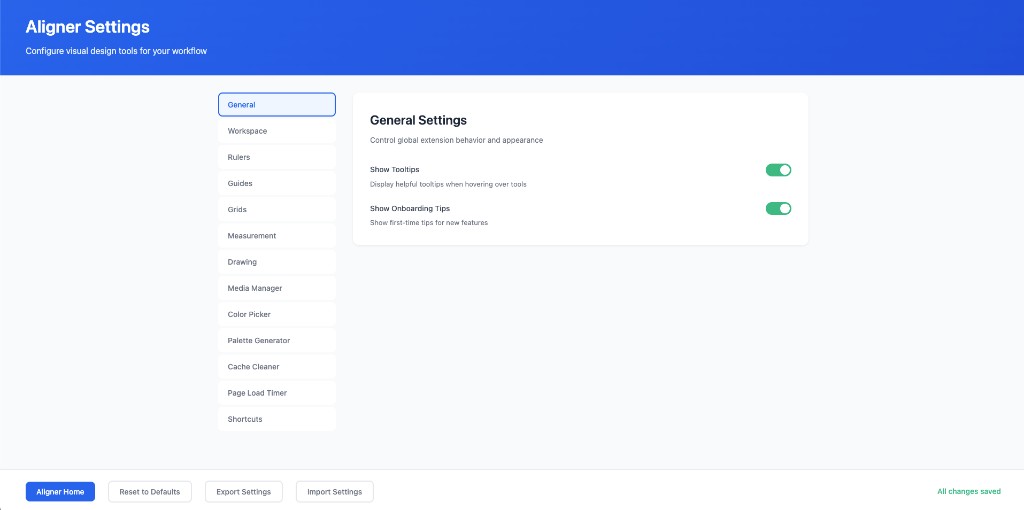
Real captures of Aligner tools on a live page. Click any image to enlarge.

Chrome Web Store listing may come later. Until then, load the open-source ZIP like any developer extension.
Grab aligner.zip from this page or GitHub Releases.
Do not delete the folder after install — Chrome loads the extension from that path.
Open chrome://extensions, enable Developer mode, click
Load unpacked, and select the unzipped folder that
contains manifest.json.
Pin the icon, open a page, then use the popup footer Home link — or Settings → Workspace → Open Aligner Home.
Chrome only auto-updates extensions from the Chrome Web Store. For the
GitHub ZIP build: download the latest release, replace your unpacked
folder contents, then click Reload on chrome://extensions.
Same toolkit, different jobs. Each row is a real friction point — and the Aligner tools that clear it. Screenshots are from the live extension, not mockups.
1/11
UI & layout designers
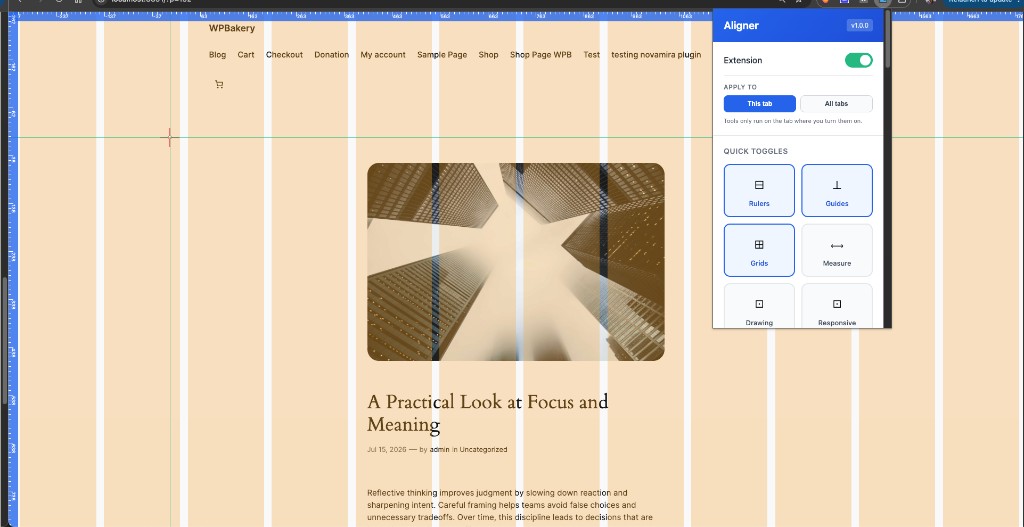
The problem: Eyeballing gaps, baselines, and columns until “close enough” ships as almost-right.
What Aligner solves: Rulers, guides, grids, and Measure so spacing, columns, and alignment are pixel-clear on the live page.
Responsive & breakpoint work
The problem: Resizing the browser window is clumsy, and DevTools device mode is overkill for a quick layout check.
What Aligner solves: Responsive mode frames common device widths beside your tools so you can catch wrapping, overflow, and breakpoint bugs fast.
Front-end polish & inspect work
The problem: You need box model, type, and spacing on one element — not a full console session.
What Aligner solves: Inspect for live structure, CSS, contrast, and typography so you can fix what’s on screen, fast.
Structure & wireframe reviews
The problem: Visual noise hides hierarchy — it’s hard to judge layout structure when every image and color is shouting.
What Aligner solves: Wireframe turns the live page into a grayscale structural view so spacing and blocks are obvious.
Media, content & marketing folks
The problem: Hunting assets in Network tabs, CMS libraries, or “save image as…” when you just need what the page is already loading.
What Aligner solves: Media Manager scans the page and lets you review and download images without leaving the tab.
Brand, color & visual QA
The problem: Guessing HEX values from screenshots or outdated style docs while the shipped page has drifted.
What Aligner solves: Color Picker and Palette Generator pull HEX / RGB / HSL from what’s actually rendered.
Accessibility reviewers
The problem: Manual spot-checks miss contrast, labels, and structure problems until a late audit or user report.
What Aligner solves: Accessibility Checker runs an automated audit with severity filters so you can prioritize real fixes.
Performance-minded designers
The problem: Speed regressions hide until someone opens a separate Lighthouse run or waits on CI.
What Aligner solves: Page Speed surfaces Core Web Vitals and a performance score while you still have the live design open.
QA, builders & anyone testing forms
The problem: Retyping fake form data, fighting popups or scripts, and wondering if you’re still seeing a cached build.
What Aligner solves: Page Controls (including Fake Filler), Cache Cleaner, and load timing so tests stay honest and fast.
WordPress developers & builders
The problem: Role checks, theme peeks, ACF field names, noisy notices, and a crowded sidebar — all while you’re trying to ship a page.
What Aligner solves: WP Tools for role switcher, theme switcher, ACF Tools, menu search, hide notices, sidebar shrink, smart editor, detector, and more — in one panel.
Designers working with AI IDEs
The problem: AI tools invent tokens because nobody exported what the live page actually uses.
What Aligner solves: Design System scans typography, color, and components, then exports DESIGN.md / SKILL.md you can drop into an IDE.
Straight answers for install, privacy, and WordPress.
Yes. Aligner is free and open source under the MIT License.
No analytics or account system ships in this project. Settings stay in Chrome storage on your device. See PRIVACY.md.
Download the newest aligner.zip from Releases, replace the
files in your unpacked folder, then hit Reload in
chrome://extensions. Watch the GitHub repo for release
notifications. Store auto-update will apply once a Chrome Web Store
listing exists.
Optional. Most WP Tools work with normal admin access. Role switcher and private Theme switcher need Aligner WP Tools Helper (ZIP bundled in the extension and Releases). Install via Plugins → Add New → Upload.
Tools run on the tab where you enable them. Use Workspace presets to hide groups you do not need so the popup stays light.
No. Independent project by Gobinda Tarafdar. Chrome is a trademark of Google LLC. WordPress is a registered trademark of the WordPress Foundation. WPBakery is a product of Rain-Task Ltd.

WordPress product marketer · stubborn problem-solver · lifelong Harry Potter devotee
By day I am the Product Marketing Specialist at WPBakery, the page builder that quietly powers a sizeable corner of the WordPress universe. Before that, I helped a single plugin cross 400,000+ active users.
When the day-job owl flies home, I tinker on my own workshop of spells. Aligner is one of them — a visual toolkit so designers and WordPress builders can measure, inspect, and ship without juggling a dozen tabs.
| Project | Description |
|---|---|
| WPBakery | Page builder I do product marketing for |
| Docscriber | Documentation, conjured |
| TheRecaller | A memory charm for what you forget online |
| TheEditra | AI video editor |
| The Quill Press | Tech news, Daily Prophet style |
| Costlas | Cost of living for 140+ countries |
| Auto AFK Slack | Lock your Mac, Slack goes AFK |
| Slack Teammate Time | Teammate local times inline in Slack |
| FinderFlow | Mac file manager with built-in editor |
| Slack Agent Bridge | MCP bridge for Cursor/Claude, local archive, automations |
| Broken Link Checker | Find broken links without leaving the page — local Chrome toolbox |
Aligner is MIT-licensed and ships without ads or tracking. A GitHub star helps others find it. A small donation keeps the workshop lit.